Central Hardware Reference
Master Brand Key & Firmware Matrix
Quick startup key reference across all major OEM hardware families.
| Brand | BIOS Setup Key | Boot Menu Key | Diagnostic / Recovery Shortcut | Battery Cutoff / Reset |
|---|---|---|---|---|
| Dell | F2 |
F12 |
Hold D + Power (BIST Display Test) |
Hold Power 25-30s (RTC Reset) |
| HP | F10 |
F9 |
F2 (HP Hardware Diagnostics) / Win + B |
Isolate battery for 60 seconds |
| Lenovo | F1 / Enter |
F12 |
Novo Button / Lenovo App Diagnostics | BIOS Cutoff / Emergency Pinhole |
| ASUS | F2 / Del |
Esc |
EZ Flash inside UEFI | Hold Power button for 40s |
| Acer | F2 |
F12 (Enable in BIOS) |
Alt + F10 (eRecovery Management) |
Bottom pinhole button (4s) |
| Razer | F2 / Del |
F12 |
F9 (System Recovery) |
Unplug AC, hold Power 15s |
| Samsung | F2 |
F10 |
F4 (Samsung Recovery) |
Power + Vol Down 10s (2-in-1s) |
| Surface | Vol Up + Power |
Vol Down + Power |
Surface Diagnostic Toolkit (SDT) | Hold Power button 20s |
Consumer vs. Business Tier Identification Guide
How to quickly assess chassis construction, repairability, and hardware features upon intake.
| Feature | Consumer Class (Inspiron, Pavilion, IdeaPad) | Business Class (Latitude, EliteBook, ThinkPad) |
|---|---|---|
| Base Fasteners | Standard Phillips, varying lengths; fragile plastic clips. | Captive screws (won't drop out), reinforced metal chassis standoffs. |
| Memory / RAM | Often fully soldered LPDDR or single SODIMM expansion slot. | Dual SODIMM slots or CAMM2 modules; easy access. |
| OS / Security | Windows Home Edition; standard firmware security controls. | Windows Pro license embedded in ACPI table; hardware dTPM 2.0. |
| Thermal & I/O | Single fan, soldered power jacks; shared CPU/GPU heatpipes. | Modular DC jacks, spill-resistant decks, independent thermal paths. |
Essential Benchtop Repair Best Practices
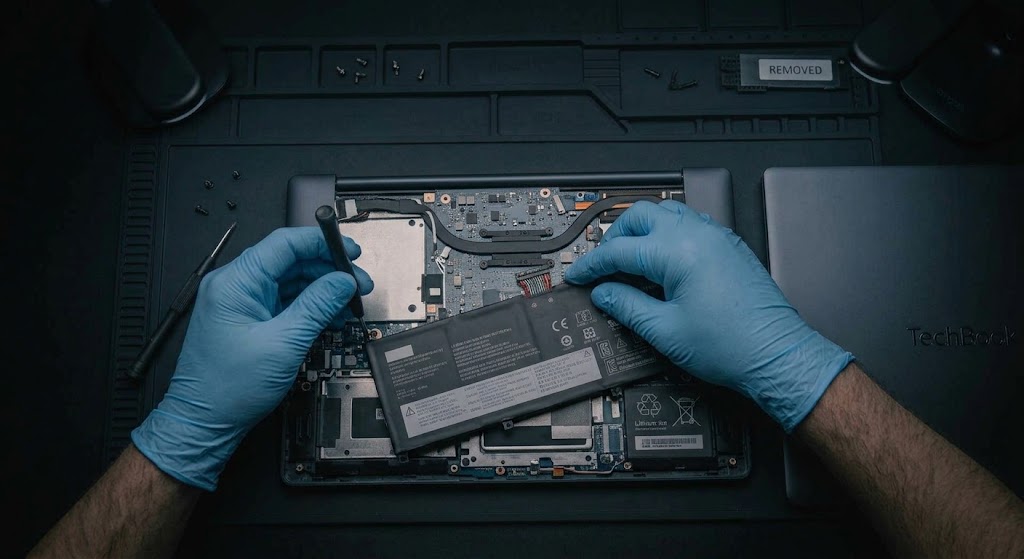
- ESD Discharges First: Always touch a grounded metal frame or wear an anti-static wrist strap before handling unshielded logic boards.
- Screw Map Organization: Track screw locations on a magnetic mat—mixing long screws into short screw posts can cause board-level trace damage ("long-screw damage").
- BitLocker Key Safeguard: Before pulling storage or flashing BIOS firmware, confirm the customer has their 48-digit Microsoft BitLocker recovery key or suspend encryption (
manage-bde -protectors -disable C:). - Thermal Paste Application: Clean old thermal compound using 99% Isopropyl Alcohol (IPA). Apply a pea-sized dot on small dies or an 'X' pattern on large heatspreaders; avoid over-torquing heatsink spring screws.
- Residual Power Drain: After removing the primary battery, press and hold the power button for 15–20 seconds to completely discharge board capacitors before handling display connectors.
System Audit & Terminal Commands
- Battery Health Report:
powercfg /batteryreport /output "C:\battery_report.html" - System File Repair:
sfc /scannow(Scans and restores corrupted Windows system binaries) - DISM Image Servicing:
DISM /Online /Cleanup-Image /RestoreHealth - Disk Error Check:
chkdsk C: /f /r(Identifies bad sectors and repairs file structures) - SMART Drive Health:
wmic diskdrive get statusorGet-PhysicalDiskin PowerShell - Network Stack Reset:
netsh winsock reset&ipconfig /flushdns
NVMe & Battery Servicing Rules
- Swollen Battery Handling: Never puncture inflated lithium-ion cells. Store degraded batteries in fireproof containment boxes immediately.
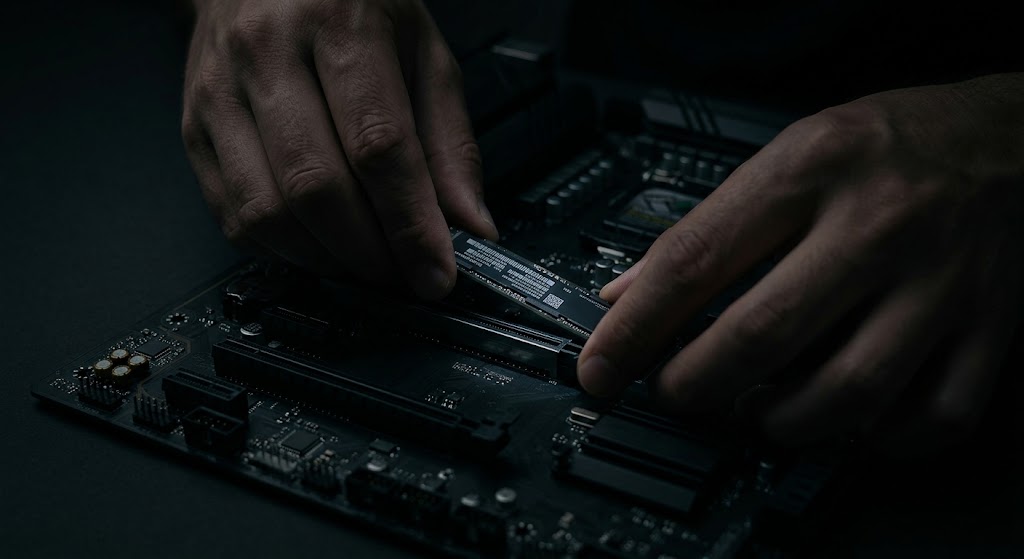
- NVMe Thermal Pads: Ensure M.2 thermal pads make firm contact with metal bottom covers or heatsinks to prevent high-load throttling.
- Display Assembly eDP Fuses: Never plug or unplug an eDP screen cable while the battery is connected; doing so frequently blows the mainboard backlight fuse.