
Laptop Product Families: Consumer vs. Business vs. Workstation
Model families and names change by year and region. Use the exact model number and service documentation when ordering parts or checking repairability.
| Grade | Common product families | Typical use / notes |
|---|---|---|
| Consumer | IdeaPad, Yoga, Legion, LOQ | Everyday, creative and gaming |
| Business | ThinkPad L, E, T, X, X1; ThinkBook | Commercial fleets and business users |
| Workstation | ThinkPad P series | Mobile workstations; verify ISV support for exact configuration |
Classification is a practical buying/service guide, not a guarantee of ruggedness, repairability, warranty terms or professional software certification.
Lenovo Hardware Reference
Lenovo Keys Quick Reference
| Target Action | Primary Key / Combination | Description / Notes |
|---|---|---|
| Interrupt Boot Prompt | Enter Key |
Tap repeatedly on ThinkPads during startup splash. |
| BIOS Setup | F1 or Fn + F1 |
Enters Lenovo UEFI configuration setup. |
| Boot Device Menu | F12 or Fn + F12 |
Brings up UEFI drive boot selection. |
| Novo Button Menu | Paperclip in Novo Hole |
Used on IdeaPad/Yoga while system is powered OFF. |
| Emergency Power Reset | Bottom Pinhole (10 sec) |
Cuts main battery circuit on unresponsive ThinkPads. |
Model Series Breakdown
- Enterprise Tier (ThinkPad X1 / T / P / L Series): Roll-cage magnesium construction, captive screws,TrackPoint keyboards, water drainage channels. Highly modular.
- Mid-Range Business (ThinkBook): Aluminum top cover, standard plastic base, dual M.2 NVMe expansion slots.
- Consumer Tier (IdeaPad / Yoga / Slim): Pinhole Novo buttons, single heatpipe fan assemblies, delicate hinges mounted to plastic anchors.
Emergency Reset Pinhole Procedure
If a ThinkPad exhibits a black screen or locked power state:
- Disconnect the AC adapter.
- Locate the tiny emergency reset pinhole on the bottom casing.
- Insert a straightened paperclip for 10 full seconds to disconnect the internal battery circuit and drain board capacitance.
- Reconnect AC power and turn on normally.
Pro Benchtop Repair Tips for Lenovo
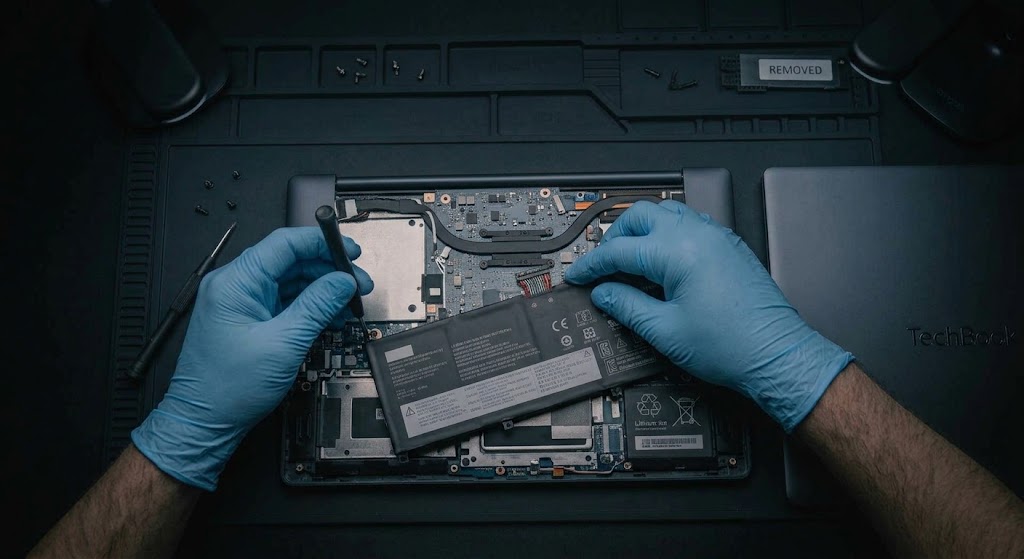
- BIOS Power Cutoff Feature: Before servicing internal components, boot into ThinkPad BIOS -> Config -> Power -> Select "Disable Built-in Battery". The battery disconnects automatically until AC power is re-attached!
- Hinge Screw Torque Issue: IdeaPad hinges often pull out of their plastic standoffs. Re-anchor standoffs using epoxy resin and loosen hinge nut tension by a quarter turn before reinstalling.
Additional Bench Reference
- Machine type and parts: Identify MTM and use Lenovo parts lookup for FRU compatibility.
- Power safety: Use Disable Built-in Battery in BIOS where offered before internal service.
- Post-repair tests: Run Lenovo diagnostics, confirm charging, trackpoint/touchpad and firmware settings.
Use the exact model service manual for disassembly, firmware and part compatibility.