Laptop Product Families: Consumer vs. Business vs. Workstation
Model families and names change by year and region. Use the exact model number and service documentation when ordering parts or checking repairability.
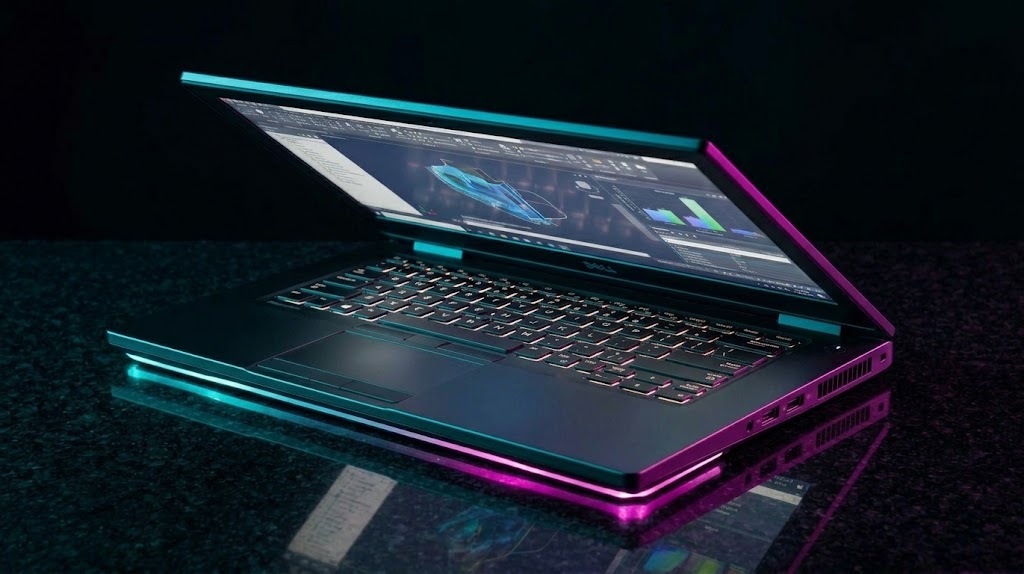
| Grade | Common product families | Typical use / notes |
|---|---|---|
| Consumer | Inspiron, XPS, Dell (consumer models), Alienware | Home, students, creators and gaming |
| Business | Latitude, Dell Pro, Dell Pro Plus, Dell Pro Premium | Commercial deployment and fleet management |
| Workstation | Precision, Dell Pro Max | Professional CAD, 3D and engineering; check model-specific ISV certification |
Classification is a practical buying/service guide, not a guarantee of ruggedness, repairability, warranty terms or professional software certification.
Dell Hardware Reference
Dell Key & Recovery Quick Reference
| Target Action | Primary Key / Combination | Description / Notes |
|---|---|---|
| BIOS / UEFI Setup | F2 |
Tap repeatedly at Dell logo during POST. |
| One-Time Boot Menu | F12 |
Selects USB installer, Network Boot, or UEFI shell. |
| ePSA Hardware Diag | Fn + Power or F12 -> Diag |
Runs onboard memory, drive, and fan diagnostic routines. |
| LCD BIST Screen Test | Hold D + Power |
Cycles solid color screens to isolate screen vs motherboard. |
| RTC / CMOS Hard Reset | Hold Power (30 Seconds) |
Resets BIOS to defaults on no-POST / corrupt states. |
Model Series Breakdown
- Business Tier (Latitude / Precision): Features captive base screws, modular DC jacks, dTPM chips, and service doors. High repairability.
- Consumer Tier (Inspiron / Vostro): Plastic clip-heavy chassis, single heatpipe cooling, soldered components on lower models.
- Enthusiast Tier (XPS / Alienware): High thermal output, vapor chambers, strict screw size variations (Torx T5 on bottom, Phillips inside).
Pro Benchtop Repair Tips for Dell
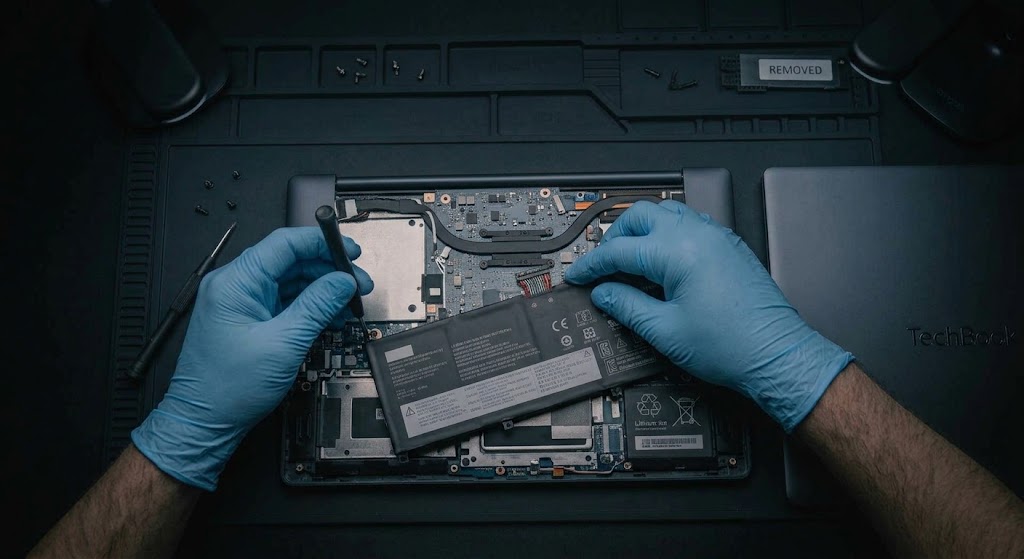
- Diagnostic LED Flashing Codes: Modern Dells flash the battery indicator light in Amber/White patterns (e.g., 2 Amber, 3 White = Memory / RAM failure; 3 Amber, 4 White = Display failure).
- Battery Cable Interlock: Always unplug the battery cable before unseating the eDP display cable. Plugging an eDP cable with power attached will instantly blow the backlight fuse on the logic board.
- Touchpad Grounding Ribbon: XPS and Latitude touchpads rely on a copper foil grounding tape attached to the palmrest. If missing, trackpad jitter occurs.
Real-Time Clock (RTC) Reset Protocol
- Connect AC adapter power. Ensure device is turned off.
- Press and hold the Power button down continuously for 30 seconds until the battery LED blinks three times.
- Release the Power button. The unit will power cycle multiple times to re-flash CMOS defaults.
Additional Bench Reference
- Pre-service checklist: Identify Service Tag and exact manual; check BIOS revision, battery health and warranty before opening.
- Storage and encryption: Confirm BitLocker recovery key is available before BIOS changes, TPM operations or drive replacement.
- Post-repair validation: Run ePSA diagnostics, verify charging, webcam, Wi-Fi, ports, speakers and sleep/resume.
Use the exact model service manual for disassembly, firmware and part compatibility.