Laptop Product Families: Consumer vs. Business vs. Workstation
Model families and names change by year and region. Use the exact model number and service documentation when ordering parts or checking repairability.
| Grade | Common product families | Typical use / notes |
|---|---|---|
| Consumer | Galaxy Book, Galaxy Book Pro, Galaxy Book Ultra | Home, productivity and creator use |
| Business | Galaxy Book Business / Enterprise editions (market-dependent) | Commercial offerings vary by region |
| Workstation | No dedicated mainstream certified workstation family | Galaxy Book Ultra can suit creators but is not a workstation line |
Classification is a practical buying/service guide, not a guarantee of ruggedness, repairability, warranty terms or professional software certification.
Samsung Hardware Reference
Samsung Keys Quick Reference
| Target Action | Primary Key / Combination | Description / Notes |
|---|---|---|
| BIOS Setup | F2 |
Tap rapidly at the Samsung splash screen. |
| Boot Device Menu | F10 |
Opens external boot media selector. |
| Samsung Factory Recovery | F4 |
Launches native Samsung Recovery solution. |
| Force Reboot (2-in-1s) | Power + Vol Down (10 sec) |
Forces hard reset on locked Galaxy Book 360 models. |
Model Series Breakdown
- Galaxy Book Ultra / Pro: Ultra-thin magnesium-aluminum alloy, dual M.2 NVMe SSD slots, soldered LPDDR memory chips.
- Galaxy Book 360 / Flex: 2-in-1 convertible touch displays, S-Pen digitizer assemblies, fragile lower glass bezel edges.
- Galaxy Book Go / ARM Series: Fanless Qualcomm Snapdragon SOC architectures, soldered eMMC/UFS storage on base models.
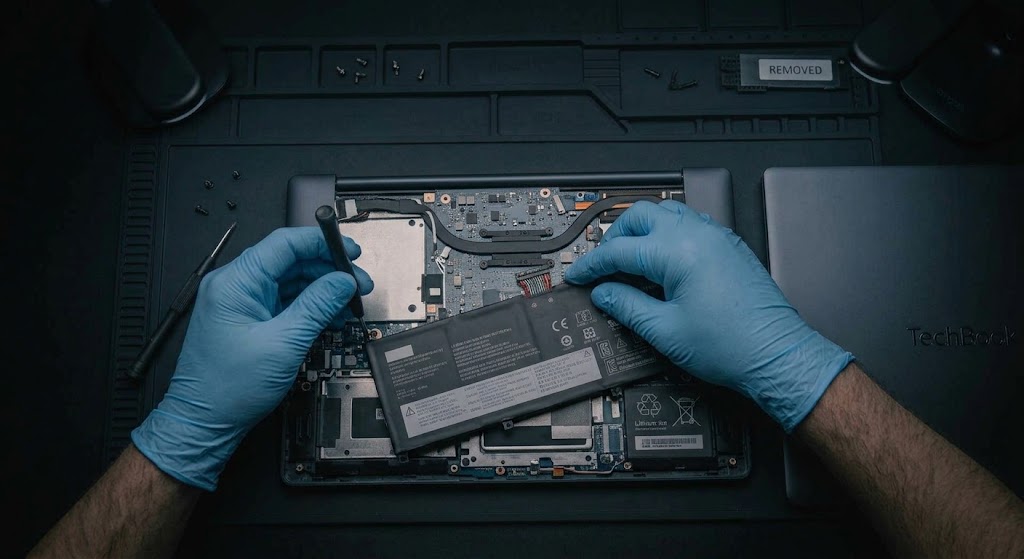
Base Fasteners & Rubber Foot Removal
Samsung Galaxy Book laptops feature completely concealed base screws:
- Use a thin plastic pry tool to unseat all four circular rubber corner feet on the bottom case.
- Remove the standard Phillips screws hidden beneath each rubber foot.
- Unclip the thin aluminum lower panel starting from the back hinge edge.
Pro Benchtop Repair Tips for Samsung
- OLED Screen Ribbon Caution: Galaxy Book Pro models feature paper-thin AMOLED screen assemblies. Never pry near the bottom display logo area to avoid severing delicate driver IC ribbons.
- Secondary SSD Slot Thermal Pad: When adding a secondary M.2 NVMe drive to a Galaxy Book Ultra, always install a 1.5mm thermal pad against the bottom metal chassis cover to prevent thermal throttling.
Additional Bench Reference
- Model-specific service: Look up exact Galaxy Book model; memory and storage serviceability vary widely.
- Samsung utilities: Use Samsung Update and Samsung Settings where supported for firmware and platform features.
- Validation: Test fingerprint, camera, display, USB-C PD and sleep/wake.
Use the exact model service manual for disassembly, firmware and part compatibility.